Managing Website Files with the Asset Manager
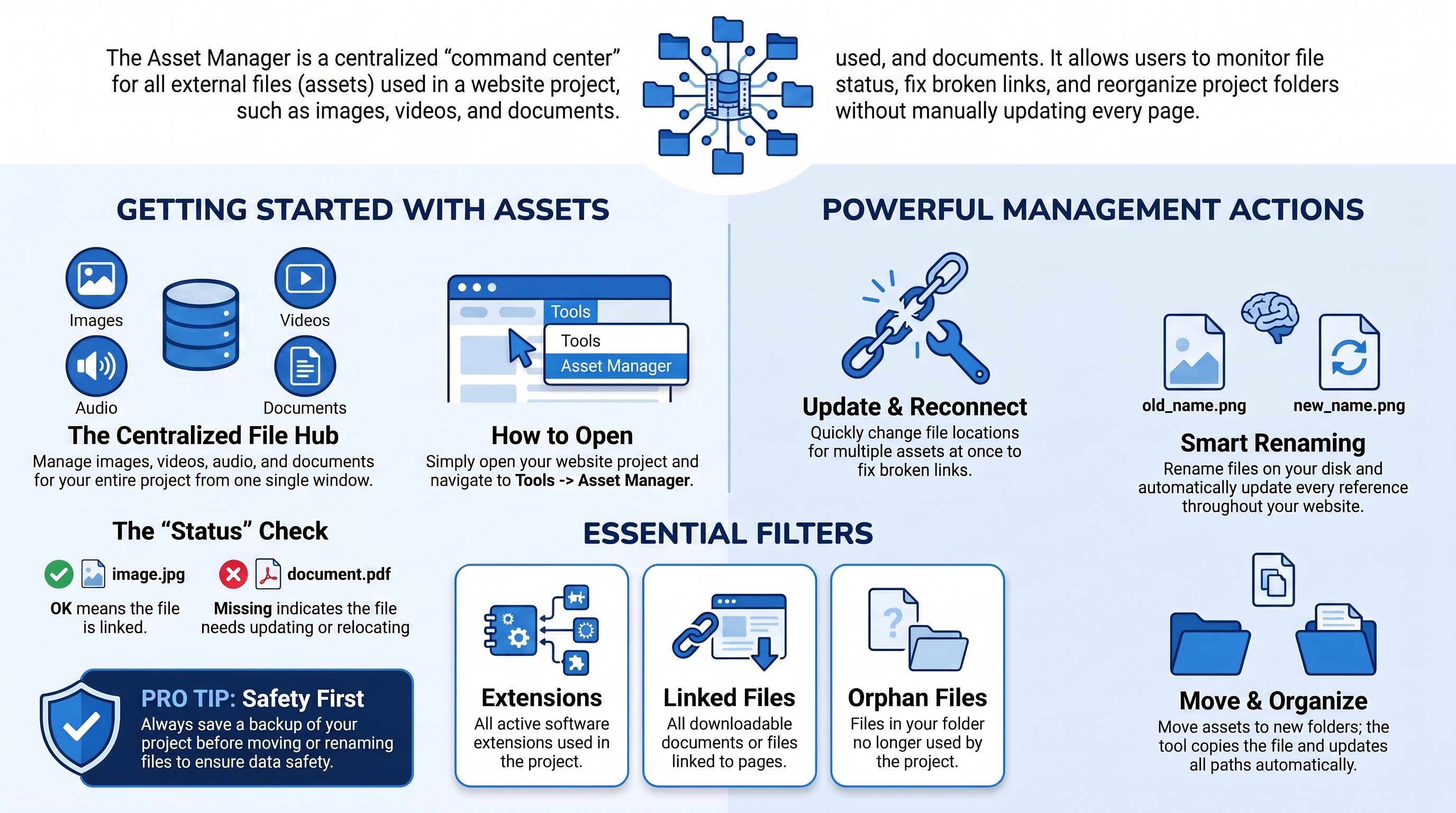
The Asset Manager shows the files used by your website project in one window. These files (called assets) can include images, videos, audio clips, downloadable documents, and extension files.
You can use the Asset Manager to:
- Find missing files
- Reconnect files that have been moved
- Organize assets into different folders
- Rename files without breaking their links
- Find files that are no longer used
Before making changes: Save your project and consider creating a backup, especially before moving, renaming, or deleting files.
An asset is a file used by your website, such as an image, video, audio clip, or downloadable document. The Asset Manager lets you find and manage these files in one place.
How to open the Asset Manager
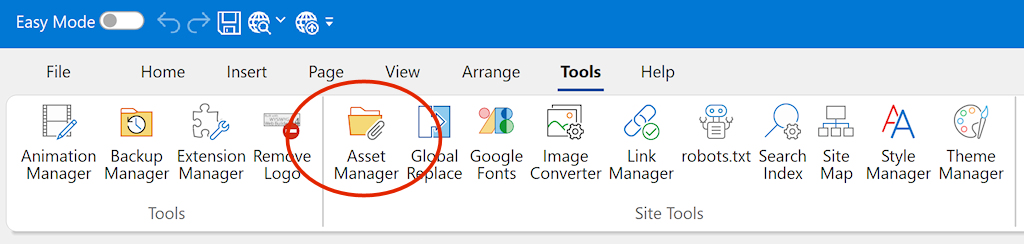
Open your website project, then choose Tools -> Asset Manager.
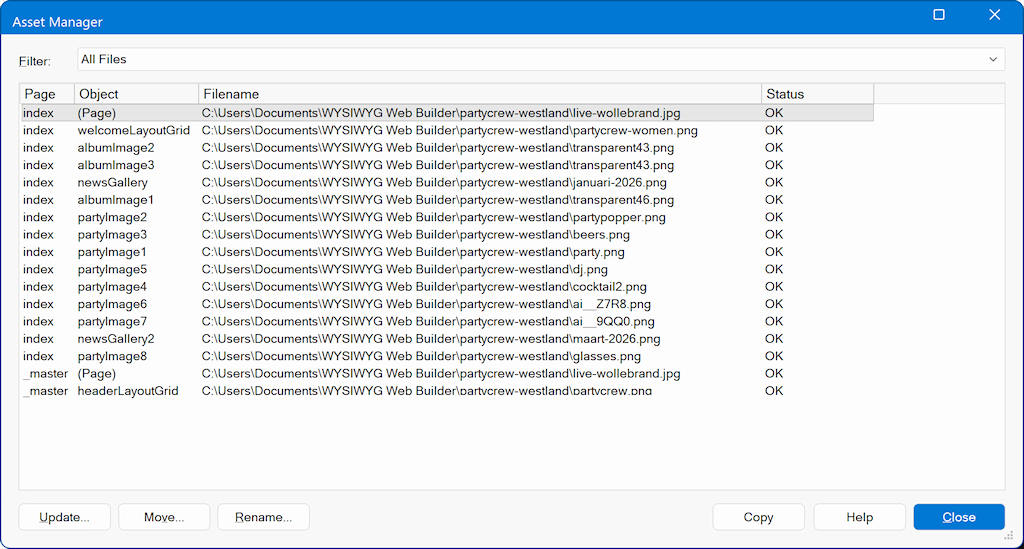
The Asset Manager lists the external files used by your project, including images, videos, audio, downloads, and extension files.
The Asset Manager lists the external files used by your project, including images, videos, audio, downloads, and extension files.
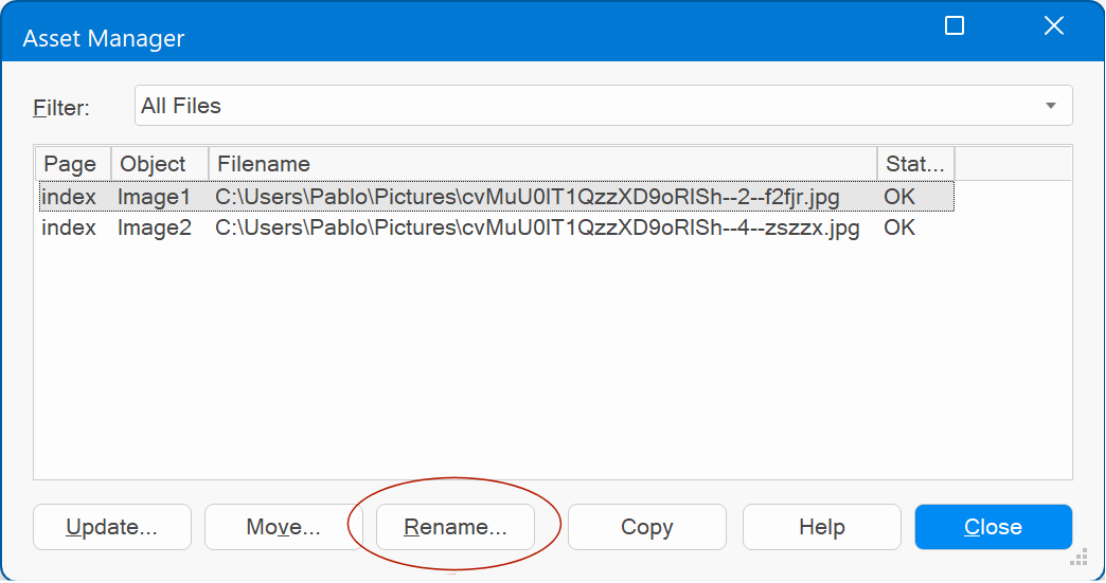
The Status column indicates whether an asset is correctly linked. A status of OK means the file was found at the specified location, while a missing or invalid status indicates that the file cannot be found and needs to be updated or relocated.
Filter
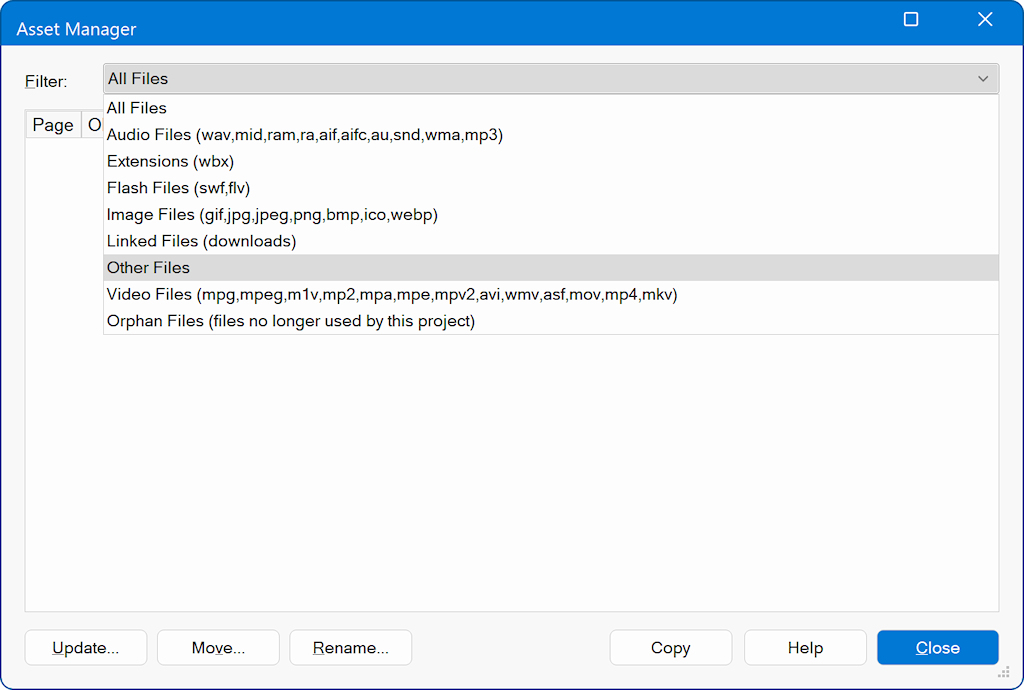
Using the Filter dropdown, you can control which types of files are displayed, including image files, audio files, video files, linked downloads, or orphan files. This makes it easy to focus on specific asset types when working on larger projects.
Extensions
When you select Extensions from the Filter dropdown list, the Asset Manager displays a complete overview of all extensions that are currently used in the project.
Linked Files
Displays all downloadable files linked to the project.
Orphan Files
Displays files in the project folder that are no longer referenced by the current project.
When you select Extensions from the Filter dropdown list, the Asset Manager displays a complete overview of all extensions that are currently used in the project.
Linked Files
Displays all downloadable files linked to the project.
Orphan Files
Displays files in the project folder that are no longer referenced by the current project.
Orphan files are not referenced by the current project. Before deleting them, make a backup and confirm that they are not needed by another project or external process.
Actions
The table below describes the available actions.
Action
What happens
Use it when
Update
Update the location of the selected files
You already moved or replaced the file
Move
Copies the file to a chosen folder and updates the project
You want Asset Manager to reorganize it
Rename
Renames the file and updates its project references
You want a clearer filename
Copy
Copies the displayed file list to the clipboard
You need a list of the assets in text format
Update
The Update feature allows you to quickly change the file location of one or more assets without manually editing each object that uses them.
To update the location of a single asset, select the item in the Asset Manager, click Update, and browse to the new file location.
To update the location of multiple assets at once, select all required items (use Ctrl or Shift to make multiple selections), click Update, and then choose the new location. Web Builder will automatically apply the updated path to all selected assets.
This makes it easy to fix broken links, relocate project files, or reorganize your asset folders. Even large numbers of assets can be updated in just a few clicks, saving time and ensuring that all references in the project remain correct.
To update the location of a single asset, select the item in the Asset Manager, click Update, and browse to the new file location.
To update the location of multiple assets at once, select all required items (use Ctrl or Shift to make multiple selections), click Update, and then choose the new location. Web Builder will automatically apply the updated path to all selected assets.
This makes it easy to fix broken links, relocate project files, or reorganize your asset folders. Even large numbers of assets can be updated in just a few clicks, saving time and ensuring that all references in the project remain correct.
Move
You can also move assets to a different location directly from the Asset Manager. Select one or more assets, click Move, and choose the destination folder.
When moving files, Web Builder copies the selected assets to the specified location and automatically updates all paths in the editor so the project continues to work correctly.
⚠ Important:
The original files are not deleted. This ensures that no data is lost and allows you to keep backup copies or continue using the original files elsewhere if needed.
This feature is especially useful for reorganizing your project folders or moving assets into a shared or final deployment directory while maintaining correct references throughout your website.
When moving files, Web Builder copies the selected assets to the specified location and automatically updates all paths in the editor so the project continues to work correctly.
⚠ Important:
The original files are not deleted. This ensures that no data is lost and allows you to keep backup copies or continue using the original files elsewhere if needed.
This feature is especially useful for reorganizing your project folders or moving assets into a shared or final deployment directory while maintaining correct references throughout your website.
Rename
In the past, updating a file's name required a two-step process: manually renaming the file on the disk and then replacing it within the project.
Now, you can rename files directly from the Asset Manager. This action not only changes the file's name on the disk but also automatically updates all references within the project. So, if the file is used by multiple objects or pages, then it will be updated for all instances.
Now, you can rename files directly from the Asset Manager. This action not only changes the file's name on the disk but also automatically updates all references within the project. So, if the file is used by multiple objects or pages, then it will be updated for all instances.

Copy
Copies the displayed asset list to the clipboard so you can paste it into a document, email, or text editor. This does not copy the actual asset files.