Importing an existing HTML page
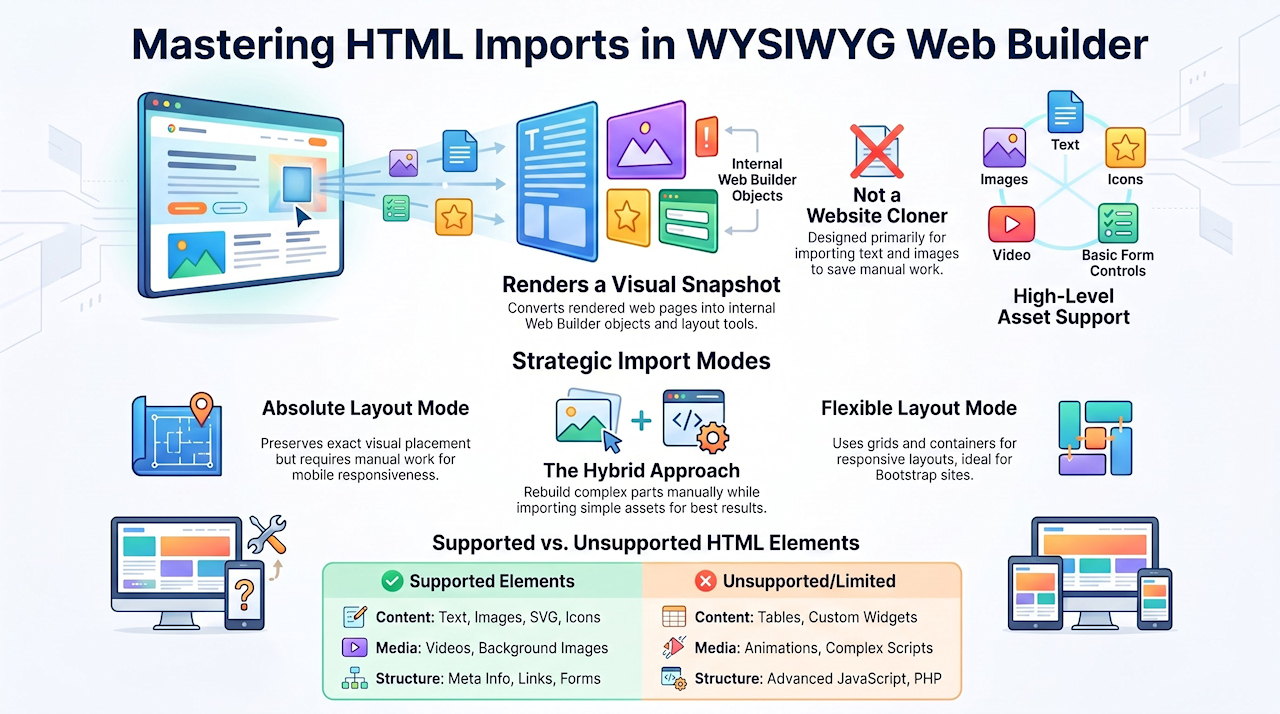
Web Builder is not an HTML editor, so you cannot open and directly edit existing HTML files. However, you can import parts of an existing web page, including text, images, SVG graphics, icons, videos, form controls, and selected page settings.
HTML importing works much like publishing in reverse. Web Builder renders the original page, takes a snapshot of its visual layout and content, and then attempts to recreate it with Web Builder objects and layout tools.
The main purpose of this tool is to import text and images, so you do not have to manually copy / paste it. It was not designed to clone complete websites.
HTML importing works much like publishing in reverse. Web Builder renders the original page, takes a snapshot of its visual layout and content, and then attempts to recreate it with Web Builder objects and layout tools.
The main purpose of this tool is to import text and images, so you do not have to manually copy / paste it. It was not designed to clone complete websites.
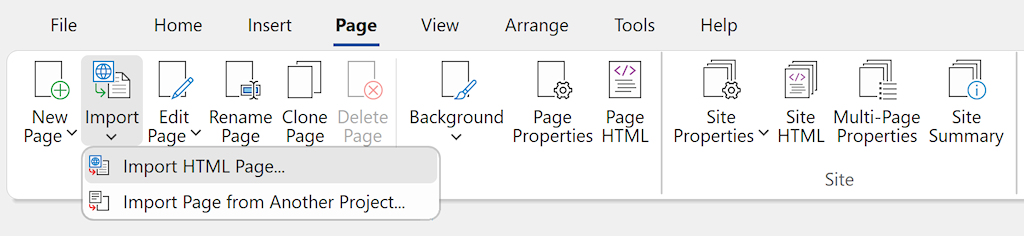
Select Page -> Import HTML Page from the menu to display the Import HTML page window.
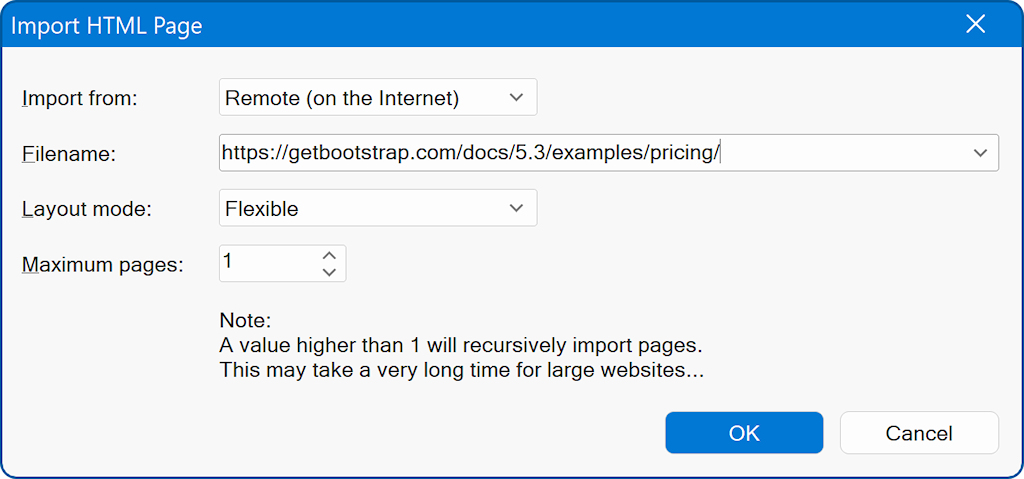
Layout mode
- Absolute
Imports the page using individually positioned objects. This can preserve the original visual placement more closely, but the resulting layout may require additional work for smaller screen sizes because objects do not automatically reflow into a responsive layout.
- Flexible
Attempts to rebuild the page using flexible grids, containers, cards, navigation menus, buttons, and other responsive Web Builder objects. The importer makes decisions about which elements belong together and should be placed in the same container.
Flexible import works best with modern websites created with responsive CSS frameworks such as Bootstrap.
Import from
Specifies where the page is located.
Select Local (on this computer) to import an HTML file from your computer.
Select Remote (on the Internet) to import a page directly from a website.
Filename/URL
Specifies the local filename or the web address of the page to import.
Maximum pages
Specifies the maximum number of pages to import.
A value greater than 1 enables recursive importing of linked pages. Importing a large website can take a long time and may create many pages, images, and other imported resources.
- WYSIWYG Web Builder is an HTML generator, not an HTML editor. It imports a rendered version of an existing page and attempts to convert that layout into Web Builder’s internal object format.
- The importer supports common page content such as text, images, SVG graphics, icons, videos, buttons, navigation menus, form elements, links, background images, link colors, and meta information.
- Some content cannot be converted directly. Tables, scripts, custom widgets, complex interactive components, animations, and other advanced HTML or JavaScript features may not be imported, or may be converted to HTML code blocks instead.
- It is not possible to support every type of HTML page. Websites are created with many different frameworks, coding styles, content management systems, themes, plugins, and third-party components. Even pages that look similar in a browser can use completely different HTML structures, CSS rules, JavaScript code, and layout techniques behind the scenes. HTML importing is therefore not a direct one-to-one conversion. Web Builder must analyze the rendered page and make informed decisions about how text, images, buttons, navigation, grids, cards, forms, and other visual elements can be recreated with its own objects.
- For best results, import pages with a clear structure and modern responsive layouts. Flexible import generally works best with Bootstrap-based pages and similar CSS-framework designs.
- If a page does not import correctly, it may contain layout techniques, scripts, or custom code that cannot be converted automatically. In those cases, it is often quicker to use the imported page as a visual reference and rebuild the unsupported parts with Web Builder’s own tools.
Adding HTML, Javascript or PHP to a web page
Instead of importing an entire HTML page, it usuallty better to create the page layout in WYSWYG Web Builder and only import the parts that cannot be implemented visually. For example, adding a third party visitors counter, maps, webshop scripts etc.
This can be done with the HTML tools:
https://www.wysiwygwebbuilder.com/add_html.html
This can be done with the HTML tools:
https://www.wysiwygwebbuilder.com/add_html.html