Translate Text using AI
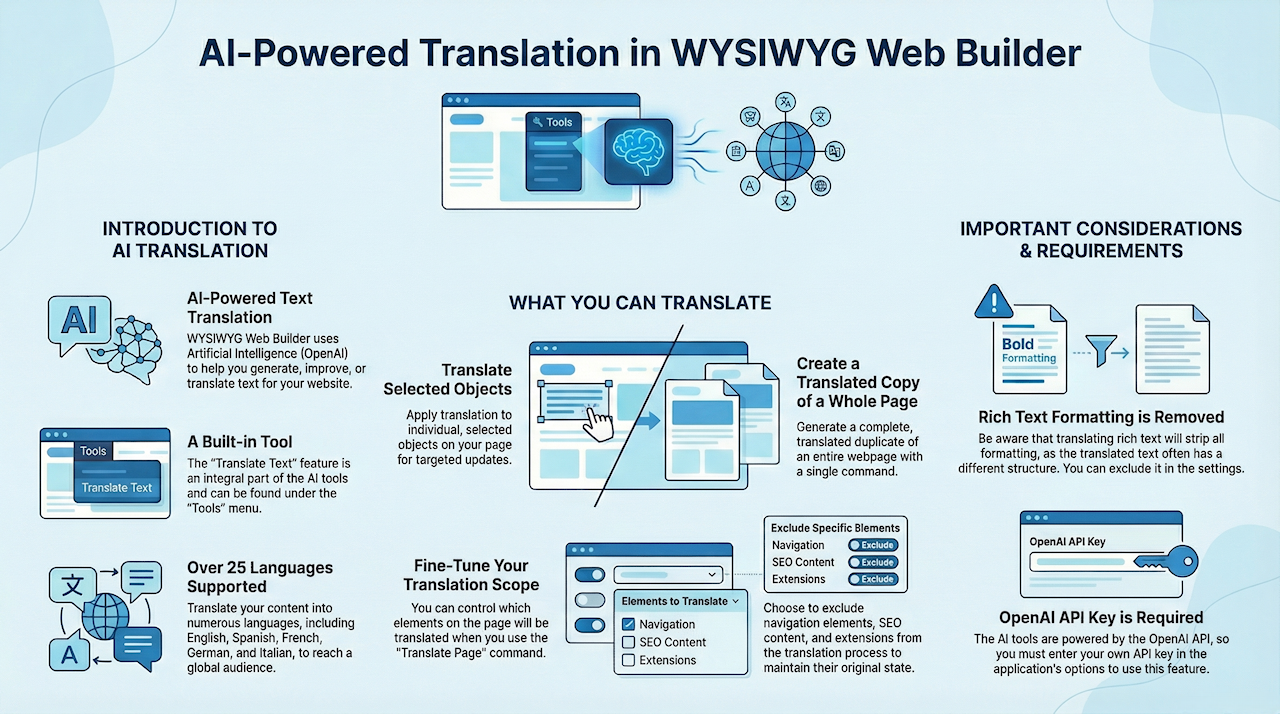
This feature is part of the new AI tools in WYSIWYG Web Builder, but translation is also available as separate tool.
You can use it to translate selected objects or create a translated copy of the whole page.
You can use it to translate selected objects or create a translated copy of the whole page.
Important Note
The AI tools in WYSIWYG Web Builder are implemented using the third-party services of OpenAI, Google's Gemini or free alternatives like ComfyUI, Ollama or LM Studio.
Open AI (paid)
You will need an OpenAI API or Google AI Studio key in order to use this functionality.
If you do not already have an account then you can create it here: https://platform.openai.com/signup or https://aistudio.google.com
The API key can be entered in Tools -> Options -> Artificial Intelligence
Alternatives (free)
The software also supports additional third-party services like ComfyUI , Ollama and LM Studio which can be installed locally on your computer,
For detailed guidance on these alternatives, refer to the tutorials linked at the bottom of this page.
The AI tools in WYSIWYG Web Builder are implemented using the third-party services of OpenAI, Google's Gemini or free alternatives like ComfyUI, Ollama or LM Studio.
Open AI (paid)
You will need an OpenAI API or Google AI Studio key in order to use this functionality.
If you do not already have an account then you can create it here: https://platform.openai.com/signup or https://aistudio.google.com
The API key can be entered in Tools -> Options -> Artificial Intelligence
Alternatives (free)
The software also supports additional third-party services like ComfyUI , Ollama and LM Studio which can be installed locally on your computer,
For detailed guidance on these alternatives, refer to the tutorials linked at the bottom of this page.
The translate tool can be accessed via the Page menu in the Tools section:
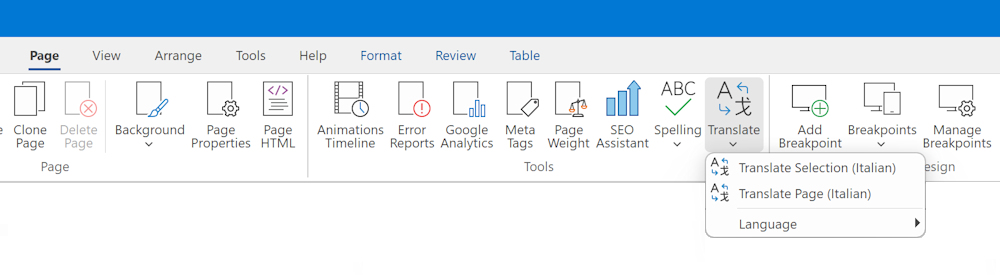
The translation language can be selected from the 'Language' dropdown menu.
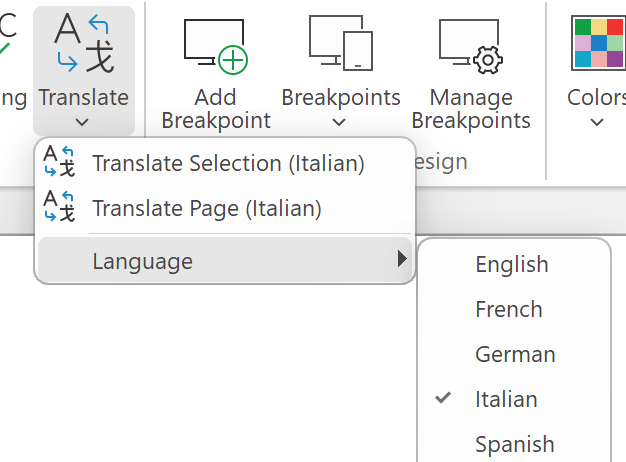
Translate Selection
The 'Translate selection' option will translate the selected objects. This can be useful if you only want to translate specific items on the page.
Translate Page
This feature allows you to generate a translated replica of an entire webpage. In contrast to the 'Translate Selection' function, it won't modify the content on the current page. Instead, it generates a new page that maintains the original layout while translating all the text. The new page's name will incorporate the language code corresponding to your selected language. For instance, if you translate 'index' into Spanish, it will become 'index-es'.
Note
If you have a lot of text then translation may cost lot of AI credits.
Also, the quality of the translation depends on the result of the third party services. So, WYSIWYG Web Builder has no over this functionality.
If you have a lot of text then translation may cost lot of AI credits.
Also, the quality of the translation depends on the result of the third party services. So, WYSIWYG Web Builder has no over this functionality.
Sometimes you may want to exclude some elements on the page from thew translation. For example, navigation, SEO or extensions. This can be configured in Tools -> Options -> Artificial Intelligence -> Translation.
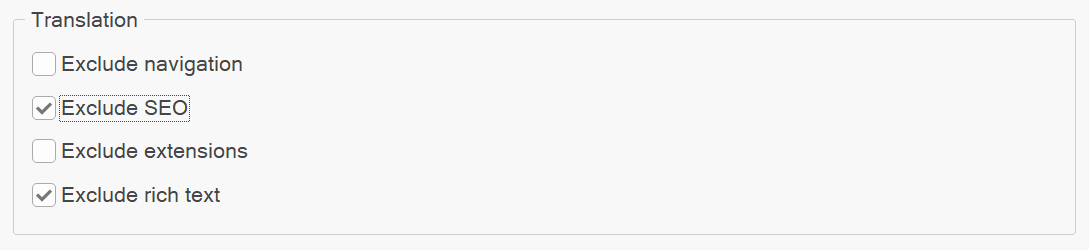
It is also important to note that translating rich text will remove all formatting from the text. This is because translated text usually has a completely different structure than the text in the original language. So, that is why you can also exclude rich text from the translation.